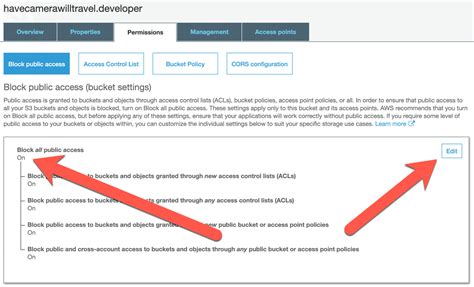
Managing access to your data stored in Amazon S3 buckets is crucial for security and collaboration. Understanding how to make an S3 bucket public, while potentially useful for specific use cases like hosting static websites or distributing large datasets, requires careful consideration of the security implications. This post will guide you through the process, explain the associated risks, and offer safer alternatives for sharing your data.
Understanding S3 Bucket Permissions
Amazon S3 uses Access Control Lists (ACLs) and bucket policies to manage access permissions. ACLs are legacy access control mechanisms that apply to individual objects within a bucket. Bucket policies, on the other hand, apply to the entire bucket and offer more granular control. Before making a bucket public, it’s essential to understand these mechanisms and how they interact.
Misconfigured permissions can lead to unauthorized access and data breaches. Therefore, carefully evaluate your needs and ensure you understand the implications of making your data publicly accessible.
For example, a company hosting its website’s static assets might choose to make the bucket containing these files public, allowing anyone to access them. However, they would likely want to restrict access to other buckets containing sensitive data like customer information.
Making an S3 Bucket Public: A Step-by-Step Guide
While making a bucket fully public is generally discouraged due to security risks, there might be specific scenarios where it’s necessary. Here’s how to do it using a bucket policy:
- Sign in to the AWS Management Console and navigate to S3.
- Select the bucket you want to make public.
- Go to the “Permissions” tab and then “Bucket policy”.
- Paste the following policy, replacing “your-bucket-name” with the actual name of your bucket:
{ "Version": "2012-10-17", "Statement": [ { "Sid": "PublicReadGetObject", "Effect": "Allow", "Principal": { "AWS": "" }, "Action": [ "s3:GetObject", "s3:GetObjectVersion" ], "Resource": [ "arn:aws:s3:::your-bucket-name/" ] } ] }
This policy grants public read access to all objects within the bucket. Remember to review and understand this policy thoroughly before implementing it.
Risks of Public S3 Buckets
Making an S3 bucket public exposes your data to anyone on the internet. This poses significant security risks, including unauthorized access, data breaches, and malicious attacks. Data breaches can lead to financial losses, reputational damage, and legal liabilities.
Attackers can exploit public buckets to steal sensitive information, distribute malware, or launch denial-of-service attacks. Therefore, it’s crucial to carefully consider the implications before making a bucket public and explore safer alternatives whenever possible.
According to a report by Security Firm X, misconfigured S3 buckets are a leading cause of data breaches. This highlights the importance of understanding and implementing proper security measures.
Safer Alternatives for Sharing Data
Instead of making an S3 bucket public, consider these safer alternatives:
- Pre-signed URLs: Generate temporary URLs that grant time-limited access to specific objects. This allows you to share data securely without making the entire bucket public.
- CloudFront with IAM restrictions: Use CloudFront as a content delivery network (CDN) and configure IAM policies to control access to your content. This provides better security and performance.
These methods allow you to share data selectively with authorized users while minimizing security risks. For instance, you can create a pre-signed URL for a specific document and share it with a client, ensuring they can access only that file for a limited time.
Choosing the right access control method is a crucial aspect of data security in the cloud. By understanding the various options and their implications, you can protect your valuable data while facilitating collaboration and access.
Frequently Asked Questions
Q: What happens if I accidentally make my S3 bucket public?
A: Immediately revoke public access by removing the public access policy or modifying it to restrict access. Review your bucket’s access logs to identify any unauthorized access and take appropriate action.
Securing your S3 buckets is paramount. While making a bucket public might seem convenient, the risks often outweigh the benefits. By utilizing safer alternatives like pre-signed URLs and CloudFront with IAM restrictions, you can maintain control over your data while facilitating secure sharing and collaboration. Learn more about managing access to your cloud resources. Explore further resources on AWS security best practices and implement them to protect your data effectively. Remember to regularly review your bucket policies and access controls to ensure they align with your security requirements.
Question & Answer :
How can I set a bucket in Amazon S3 so all the files are publicly read-only by default?
You can set a bucket policy as detailed in this blog post:
http://ariejan.net/2010/12/24/public-readable-amazon-s3-bucket-policy/
As per @robbyt’s suggestion, create a bucket policy with the following JSON:
{ "Version": "2008-10-17", "Statement": [ { "Sid": "AllowPublicRead", "Effect": "Allow", "Principal": { "AWS": "*" }, "Action": [ "s3:GetObject" ], "Resource": [ "arn:aws:s3:::bucket/*" ] } ] }
Important: replace bucket in the Resource line with the name of your bucket.
