Eclipse, a cornerstone for many Java developers, can sometimes feel sluggish. Optimizing the JVM (Java Virtual Machine) settings is crucial for a smooth and productive coding experience. Tweaking these settings can significantly impact performance, especially when working on large projects or resource-intensive tasks. This guide explores the optimal JVM settings for Eclipse, enabling you to unlock its full potential and transform your development workflow.
Understanding the Importance of JVM Tuning
The JVM is the engine that powers your Java applications, including Eclipse. Its settings govern how resources like memory and processing power are allocated. Incorrect configuration can lead to slowdowns, freezes, or even crashes. By fine-tuning these settings, you’re essentially optimizing the environment in which Eclipse operates, resulting in a more responsive and efficient IDE.
Imagine trying to run a high-performance car on low-grade fuel. Similarly, Eclipse, even with its robust architecture, can’t perform optimally without the right JVM configuration. This is particularly true for developers dealing with complex projects, large codebases, or memory-intensive plugins. Proper JVM tuning is an investment in your productivity.
A well-configured JVM ensures that Eclipse has adequate resources to handle your workload, minimizing frustrating delays and maximizing your coding efficiency. This allows you to focus on what matters most: building great software.
Key JVM Settings for Eclipse
Several key JVM settings directly impact Eclipse’s performance. These include heap size (-Xms and -Xmx), garbage collection settings (-XX:+UseG1GC for example), and the permgen or metaspace size (-XX:MaxMetaspaceSize). Understanding these parameters and how to adjust them is fundamental to optimizing Eclipse.
The -Xms flag sets the initial heap size, while -Xmx defines the maximum heap size. Setting these appropriately prevents Eclipse from constantly requesting more memory from the operating system. The garbage collector plays a crucial role in managing memory, and choosing the right one can drastically reduce pauses and improve responsiveness.
Consider a scenario where your Eclipse instance frequently freezes. This could indicate insufficient heap size. By increasing the -Xmx value, you provide Eclipse with more breathing room, reducing the likelihood of such freezes. Remember to strike a balance – allocating too much memory can also negatively impact performance by leaving less for the operating system.
Finding Your Optimal Configuration
There’s no one-size-fits-all solution for JVM settings. The ideal configuration depends on factors like your system’s resources (RAM, CPU), the size and complexity of your projects, and the plugins you use. Experimentation is key to finding what works best for you.
Start by monitoring Eclipse’s performance with the default settings. Identify bottlenecks by observing CPU usage and memory consumption during typical development tasks. Then, incrementally adjust the JVM settings, testing the impact of each change. Tools like JVisualVM can provide valuable insights into JVM behavior.
Think of it like tuning a musical instrument. You adjust the strings until you achieve the desired sound. Similarly, you fine-tune the JVM parameters until you achieve the optimal balance of performance and stability for your specific development environment.
Troubleshooting Common JVM Issues
Even with careful configuration, you might encounter JVM-related issues. Common problems include OutOfMemoryError exceptions, excessive garbage collection activity, and slow startup times. Understanding these issues and their solutions is essential for maintaining a healthy Eclipse environment. “Premature optimization is the root of all evil” - Donald Knuth. Focus on optimizing based on real performance issues, not speculation.
The OutOfMemoryError is a clear indicator that your heap size is insufficient. Increase the -Xmx value to address this. Excessive garbage collection, on the other hand, can be tackled by switching to a more efficient garbage collector like G1GC. Slow startup times can often be improved by optimizing the permgen or metaspace size.
If you encounter the dreaded OutOfMemoryError: PermGen space, increasing the -XX:MaxPermSize (for older JVMs) or -XX:MaxMetaspaceSize (for newer JVMs) can resolve the problem. This area of the JVM stores metadata about loaded classes, and insufficient space can lead to crashes.
- Monitor resource usage: Use tools like JConsole or JVisualVM to track memory consumption and CPU usage.
- Incrementally adjust settings: Avoid drastic changes; make small adjustments and test the impact.
- Identify Bottlenecks: Observe Eclipse’s behavior during typical tasks to pinpoint areas for improvement.
- Adjust Heap Size: Modify -Xms and -Xmx based on your project’s needs.
- Tune Garbage Collection: Experiment with different garbage collectors to find the optimal one.
For a deeper dive into garbage collection tuning, explore Oracle’s documentation on G1GC.
Also check out other resources like Java Performance Tuning Tips and Tricks and Baeldung’s guide on JVM parameters.
Learn more about JVM tuning.Featured Snippet Optimized Paragraph: To quickly boost Eclipse performance, increase the maximum heap size (-Xmx) to a value appropriate for your system resources and project size. For example, try -Xmx2g to allocate 2 gigabytes of memory. This often significantly improves responsiveness.
[Infographic Placeholder: Visualizing JVM Memory Management]
Frequently Asked Questions
Q: How do I set JVM arguments for Eclipse?
A: You can set JVM arguments in the eclipse.ini file located in your Eclipse installation directory.
Q: What are the recommended JVM settings for a system with 8GB of RAM?
A: A good starting point would be -Xms512m and -Xmx1g, but you might need to adjust these based on your project size.
Optimizing your Eclipse JVM settings is a crucial step towards a more efficient and enjoyable development experience. By understanding the key parameters and experimenting with different configurations, you can unlock the full potential of your IDE. Remember to monitor performance, troubleshoot any issues that arise, and continuously refine your settings as your projects evolve. Don’t settle for a sluggish Eclipse – take control of your JVM and elevate your coding workflow! Explore further resources and continue fine-tuning your setup to create the perfect development environment. Start optimizing today and experience the difference!
Question & Answer :
It is that time of year again: “eclipse.ini take 3” the settings strike back!
Eclipse Helios 3.6 and 3.6.x settings
alt text http://www.eclipse.org/home/promotions/friends-helios/helios.png
After settings for Eclipse Ganymede 3.4.x and Eclipse Galileo 3.5.x, here is an in-depth look at an “optimized” eclipse.ini settings file for Eclipse Helios 3.6.x:
- based on runtime options,
- and using the Sun-Oracle JVM 1.6u21 b7, released July, 27th (
some some Sun proprietary options may be involved).
(by “optimized”, I mean able to run a full-fledge Eclipse on our crappy workstation at work, some old P4 from 2002 with 2Go RAM and XPSp3. But I have also tested those same settings on Windows7)
Eclipse.ini

WARNING: for non-windows platform, use the Sun proprietary option -XX:MaxPermSize instead of the Eclipse proprietary option --launcher.XXMaxPermSize.
That is: Unless you are using the latest jdk6u21 build 7. See the Oracle section below.
-data ../../workspace -showlocation -showsplash org.eclipse.platform --launcher.defaultAction openFile -vm C:/Prog/Java/jdk1.6.0_21/jre/bin/server/jvm.dll -vmargs -Dosgi.requiredJavaVersion=1.6 -Declipse.p2.unsignedPolicy=allow -Xms128m -Xmx384m -Xss4m -XX:PermSize=128m -XX:MaxPermSize=384m -XX:CompileThreshold=5 -XX:MaxGCPauseMillis=10 -XX:MaxHeapFreeRatio=70 -XX:+CMSIncrementalPacing -XX:+UnlockExperimentalVMOptions -XX:+UseG1GC -XX:+UseFastAccessorMethods -Dcom.sun.management.jmxremote -Dorg.eclipse.equinox.p2.reconciler.dropins.directory=C:/Prog/Java/eclipse_addons
Note:
Adapt the p2.reconciler.dropins.directory to an external directory of your choice.
See this SO answer. The idea is to be able to drop new plugins in a directory independently from any Eclipse installation.
The following sections detail what are in this eclipse.ini file.
The dreaded Oracle JVM 1.6u21 (pre build 7) and Eclipse crashes
Andrew Niefer did alert me to this situation, and wrote a blog post, about a non-standard vm argument (-XX:MaxPermSize) and can cause vms from other vendors to not start at all.
But the eclipse version of that option (--launcher.XXMaxPermSize) is not working with the new JDK (6u21, unless you are using the 6u21 build 7, see below).
The final solution is on the Eclipse Wiki, and for Helios on Windows with 6u21 pre build 7 only:
- downloading the fixed eclipse_1308.dll (July 16th, 2010)
- and place it into
(eclipse_home)/plugins/org.eclipse.equinox.launcher.win32.win32.x86_1.1.0.v20100503
That’s it. No setting to tweak here (again, only for Helios on Windows with a 6u21 pre build 7).
For non-Windows platform, you need to revert to the Sun proprietary option -XX:MaxPermSize.
The issue is based one a regression: JVM identification fails due to Oracle rebranding in java.exe, and triggered bug 319514 on Eclipse.
Andrew took care of Bug 320005 - [launcher] --launcher.XXMaxPermSize: isSunVM should return true for Oracle, but that will be only for Helios 3.6.1.
Francis Upton, another Eclipse committer, reflects on the all situation.
Update u21b7, July, 27th:
Oracle have regressed the change for the next Java 6 release and won’t implement it again until JDK 7.
If you use jdk6u21 build 7, you can revert to the --launcher.XXMaxPermSize (eclipse option) instead of -XX:MaxPermSize (the non-standard option).
The auto-detection happening in the C launcher shim eclipse.exe will still look for the “Sun Microsystems” string, but with 6u21b7, it will now work - again.
For now, I still keep the -XX:MaxPermSize version (because I have no idea when everybody will launch eclipse the right JDK).
Implicit -startup and --launcher.library
Contrary to the previous settings, the exact path for those modules is not set anymore, which is convenient since it can vary between different Eclipse 3.6.x releases:
- startup: If not specified, the executable will look in the plugins directory for the
org.eclipse.equinox.launcherbundle with the highest version. - launcher.library: If not specified, the executable looks in the
pluginsdirectory for the appropriateorg.eclipse.equinox.launcher.[platform]fragment with the highest version and uses the shared library namedeclipse_*inside.
Use JDK6
The JDK6 is now explicitly required to launch Eclipse:
-Dosgi.requiredJavaVersion = 1.6
This SO question reports a positive incidence for development on Mac OS.
+UnlockExperimentalVMOptions
The following options are part of some of the experimental options of the Sun JVM.
-XX:+UnlockExperimentalVMOptions -XX:+UseG1GC -XX:+UseFastAccessorMethods
They have been reported in this blog post to potentially speed up Eclipse.
See all the JVM options here and also in the official Java Hotspot options page.
Note: the detailed list of those options reports that UseFastAccessorMethods might be active by default.
See also “Update your JVM”:
As a reminder, G1 is the new garbage collector in preparation for the JDK 7, but already used in the version 6 release from u17.
Opening files in Eclipse from the command line
See the blog post from Andrew Niefer reporting this new option:
--launcher.defaultAction openFile
This tells the launcher that if it is called with a command line that only contains arguments that don’t start with “
-”, then those arguments should be treated as if they followed “--launcher.openFile”.
eclipse myFile.txt
This is the kind of command line the launcher will receive on windows when you double click a file that is associated with eclipse, or you select files and choose “
Open With” or “Send To” Eclipse.
Relative paths will be resolved first against the current working directory, and second against the eclipse program directory.
See bug 301033 for reference. Originally bug 4922 (October 2001, fixed 9 years later).
p2 and the Unsigned Dialog Prompt
If you are tired of this dialog box during the installation of your many plugins:
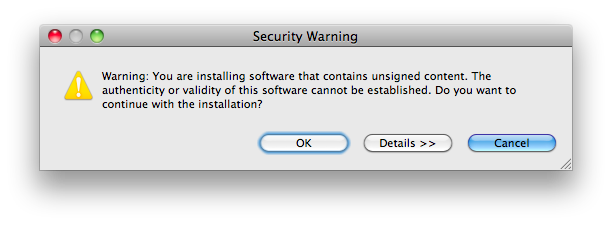
, add in your eclipse.ini:
-Declipse.p2.unsignedPolicy=allow
See this blog post from Chris Aniszczy, and the bug report 235526.
I do want to say that security research supports the fact that less prompts are better.
People ignore things that pop up in the flow of something they want to get done.
For 3.6, we should not pop up warnings in the middle of the flow - no matter how much we simplify, people will just ignore them.
Instead, we should collect all the problems, do not install those bundles with problems, and instead bring the user back to a point in the workflow where they can fixup - add trust, configure security policy more loosely, etc. This is called ‘safe staging’.
———- http://www.eclipse.org/home/categories/images/wiki.gif alt text http://www.eclipse.org/home/categories/images/wiki.gif alt text http://www.eclipse.org/home/categories/images/wiki.gif
Additional options
Those options are not directly in the eclipse.ini above, but can come in handy if needed.
The user.home issue on Windows7
When eclipse starts, it will read its keystore file (where passwords are kept), a file located in user.home.
If for some reason that user.home doesn’t resolve itself properly to a full-fledge path, Eclipse won’t start.
Initially raised in this SO question, if you experience this, you need to redefine the keystore file to an explicit path (no more user.home to resolve at the start)
Add in your eclipse.ini:
-eclipse.keyring C:\eclipse\keyring.txt
This has been tracked by bug 300577, it has been solve in this other SO question.
Debug mode
Wait, there’s more than one setting file in Eclipse.
if you add to your eclipse.ini the option:
-debug
, you enable the debug mode and Eclipse will look for another setting file: a .options file where you can specify some OSGI options.
And that is great when you are adding new plugins through the dropins folder.
Add in your .options file the following settings, as described in this blog post “Dropins diagnosis”:
org.eclipse.equinox.p2.core/debug=true org.eclipse.equinox.p2.core/reconciler=true
P2 will inform you what bundles were found in
dropins/folder, what request was generated, and what is the plan of installation. Maybe it is not detailed explanation of what actually happened, and what went wrong, but it should give you strong information about where to start:
- was your bundle in the plan?
- Was it installation problem (P2 fault)
- or maybe it is just not optimal to include your feature?
That comes from Bug 264924 - [reconciler] No diagnosis of dropins problems, which finally solves the following issue like:
Unzip eclipse-SDK-3.5M5-win32.zip to ..../eclipse Unzip mdt-ocl-SDK-1.3.0M5.zip to ..../eclipse/dropins/mdt-ocl-SDK-1.3.0M5
This is a problematic configuration since OCL depends on EMF which is missing.
3.5M5 provides no diagnosis of this problem.
Start eclipse.
No obvious problems. Nothing in Error Log.
Help / About / Plugindetails showsorg.eclipse.ocl.doc, but notorg.eclipse.ocl.
Help / About / Configurationdetails has no (diagnostic) mention oforg.eclipse.ocl.Help / Installation / Information Installed Softwarehas no mention oforg.eclipse.ocl.
Where are the nice error markers?
Manifest Classpath
See this blog post:
- In Galileo (aka Eclipse 3.5), JDT started resolving manifest classpath in libraries added to project’s build path. This worked whether the library was added to project’s build path directly or via a classpath container, such as the user library facility provided by JDT or one implemented by a third party.
- In Helios, this behavior was changed to exclude classpath containers from manifest classpath resolution.
That means some of your projects might no longer compile in Helios.
If you want to revert to Galileo behavior, add:
-DresolveReferencedLibrariesForContainers=true
See bug 305037, bug 313965 and bug 313890 for references.
IPV4 stack
This SO question mentions a potential fix when not accessing to plugin update sites:
-Djava.net.preferIPv4Stack=true
Mentioned here just in case it could help in your configuration.
JVM1.7x64 potential optimizations
This article reports:
For the record, the very fastest options I have found so far for my bench test with the 1.7 x64 JVM n Windows are:
-Xincgc -XX:-DontCompileHugeMethods -XX:MaxInlineSize=1024 -XX:FreqInlineSize=1024
But I am still working on it…


